
Sub Workflow best practices
A Sub Workflow runs another workflow as a step inside the current flow. Used well, it turns huge unmaintainable flows into small, reusable, testable pieces. Used poorly, it hides logic and creates dependencies that are hard to follow. This guide helps you decide when it pays off and how to do it well.
When to use it
Section titled “When to use it”- Reuse logic: the same sequence (invoice, notify, compute taxes) that repeats across flows. Write it once and call it from wherever you need.
- Split a large flow: when a workflow has dozens of nodes, extract meaningful blocks (“Onboarding”, “Billing”, “Shipping”) into sub-workflows. The main flow stays readable.
- Batch processing: with
parallelmode, an input array launches one instance per element (e.g. process 50 orders in parallel). - Separate by responsibility or team: each sub-workflow can have its own owner, history and versions.
- Orchestrate long processes: with
asyncmode you launch a sub-process and move on without waiting (fire & forget).
When NOT to use it
Section titled “When NOT to use it”- For just a node or two: if the “sub-process” is two steps, keep them in the same flow. A Sub Workflow adds a layer of indirection that isn’t worth it.
- If you need the result immediately and the child is slow: in
syncthe parent waits. For long non-blocking tasks, useasyncor the queue. - As a substitute for a simple loop: to iterate an array, Iterator is often enough; reserve
parallelfor when each element triggers a real flow. - When it would create a cycle: if A calls B and B ends up calling A, you get infinite recursion. The editor warns you (see below), but the design has to be fixed.
Choosing the execution mode
Section titled “Choosing the execution mode”| Mode | What it does | When to use |
|---|---|---|
| sync | The parent waits for the child’s result before continuing. | You need the sub-workflow’s output in the next step. |
| async | Launches the child and continues without waiting (fire & forget). | Non-blocking tasks: send an email, log an event, notify a system. |
| parallel | If the input is an array, launches one instance per element (max 5 concurrent by default). | Batch processing where each element is a full flow. |
Passing data and state
Section titled “Passing data and state”input_data: what you send the child as input. Accepts JSON or dynamic variables ({{...}}). If left empty, the child receives the node’s inputdata.pass_state(on by default): inherits the parent’sworkflowStateto share context between flows. Turn it off if you want the child to start “clean”, without inheriting the parent’s state.
Recommendation: pass the child only what it needs, not the whole state. An explicit input contract (an input_data with just the right fields) makes the sub-workflow reusable and easy to test on its own.
Demo: splitting an onboarding into sub-workflows
Section titled “Demo: splitting an onboarding into sub-workflows”A customer onboarding that does everything (invoice, charge, notify accounting, welcome) is a perfect candidate for sub-workflows.
-
Create the leaf sub-workflows first: “Send welcome” and “Notify accounting”. They are normal flows, nothing special.
-
Chain the intermediates: “Charge” calls (Sub Workflow) “Notify accounting”; “Invoice customer” calls “Charge”.
-
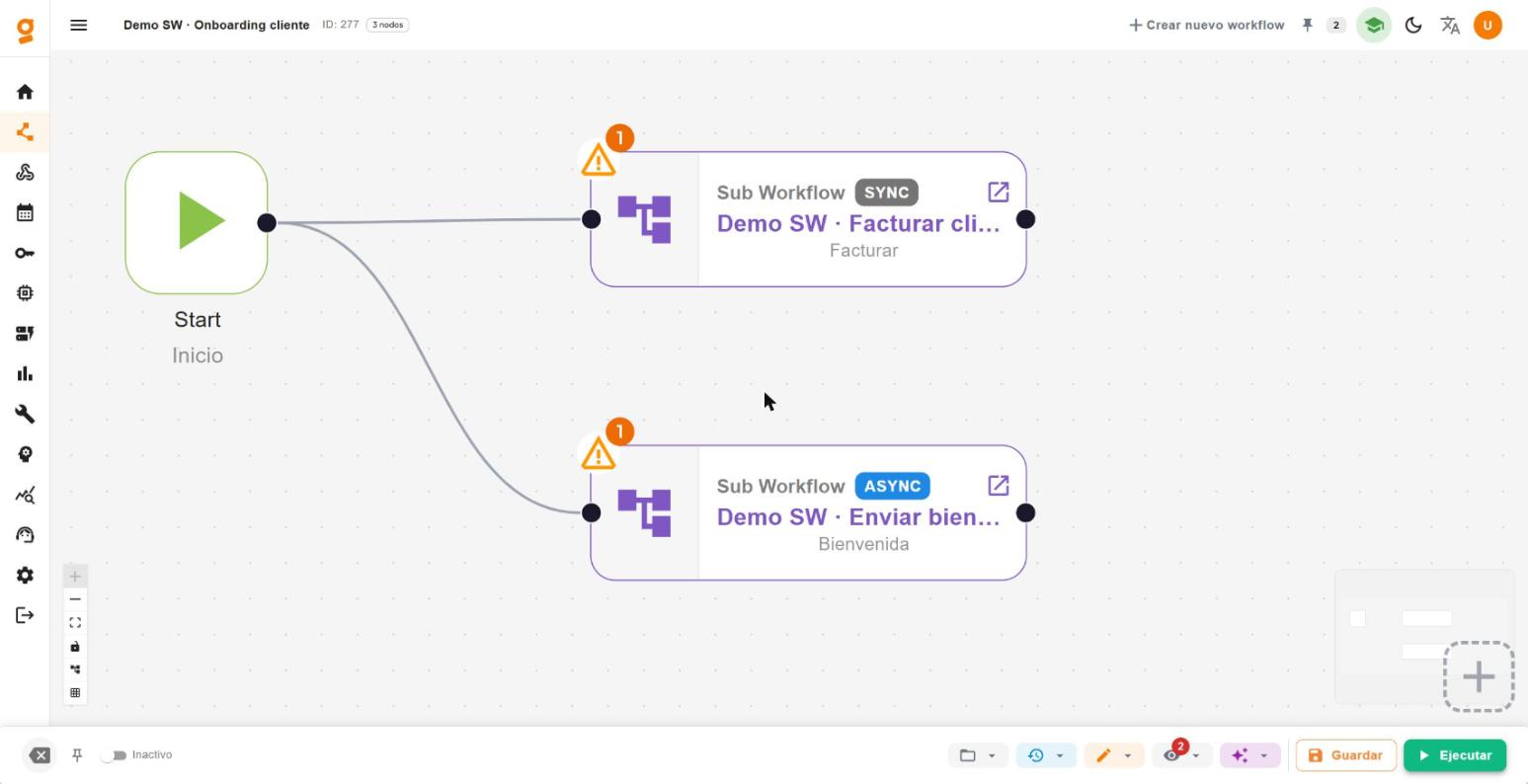
Build the main flow “Customer onboarding”: from Start, a Sub Workflow to “Invoice customer” (
sync, because onboarding depends on invoicing) and another to “Send welcome” (async, no need to wait for it). -
Check the tree from the workflow list: each parent shows a chevron that expands the sub-workflows it invokes, without opening the editor.
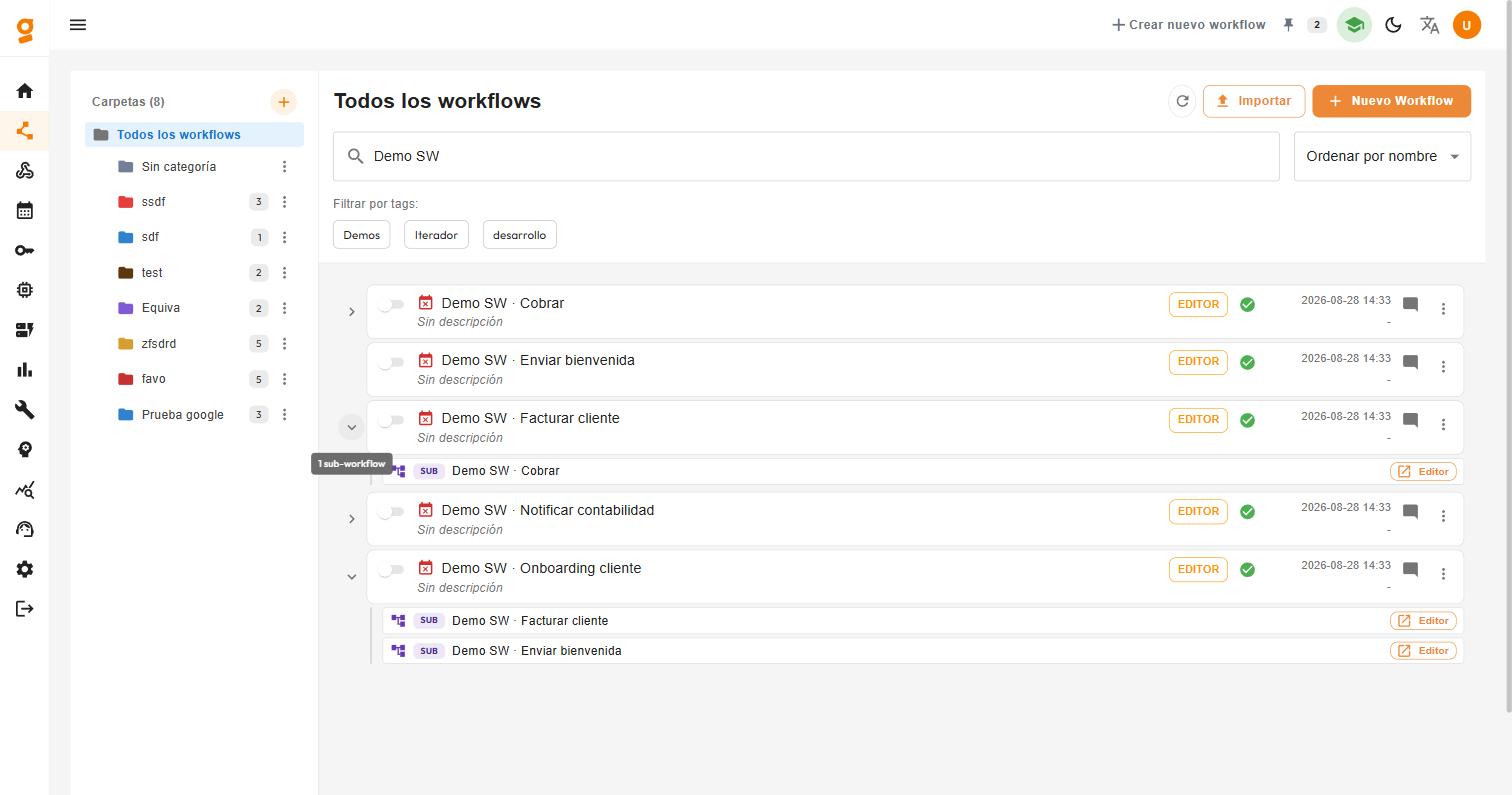
Result: “Customer onboarding” → Invoice customer → Charge → Notify accounting, plus Send welcome in parallel. Each piece is tested, versioned and reused separately.
Avoid recursion
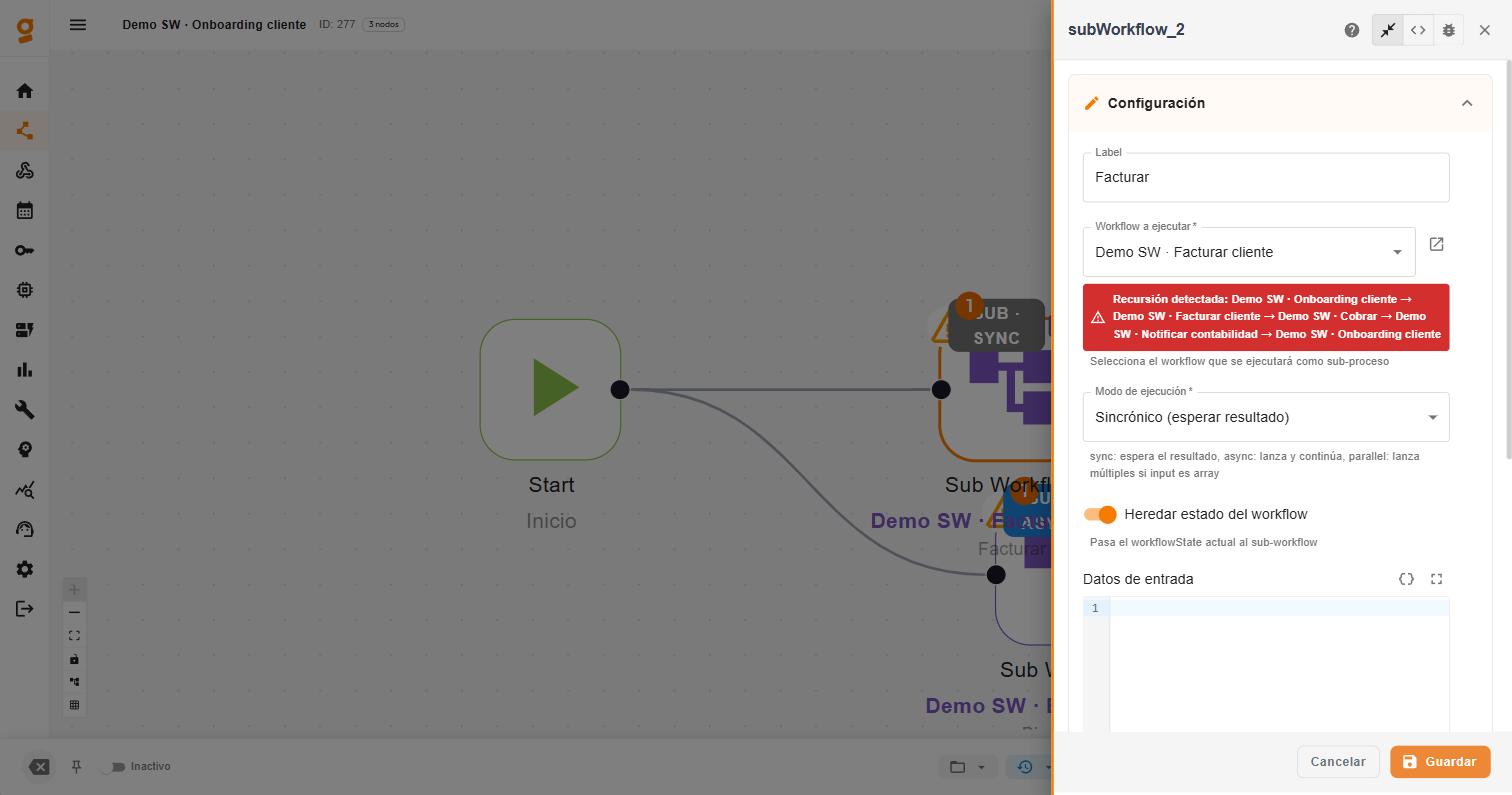
Section titled “Avoid recursion”The most common mistake with sub-workflows is closing a cycle: A calls B, B calls C, and C calls A again. That produces infinite executions.
When you pick the child workflow, the editor detects the cycle —direct or indirect— and shows the full path. If you see that red warning, change the design (usually the last link should not loop back to the first).
Managing it from the editor
Section titled “Managing it from the editor”- The node on the canvas shows the child workflow, the mode and an ↗ link to open it in a new tab: no need to remember what each Sub Workflow points to.
- The list shows the dependency tree via the chevron, so you can spot at a glance which flows depend on which.
Checklist
Section titled “Checklist”- The sub-workflow has a clear responsibility (a “verb”: invoice, charge, notify).
- You picked the right mode:
syncif you need the result,asyncif not,parallelfor batches. - You pass only what’s needed in
input_data, not the whole state. - You tuned
timeout_msif the child may take a while (insync). - No cycles: the panel shows no recursion warning.
- You named the flows so the list tree is self-explanatory.
Related nodes
Section titled “Related nodes”- SubWorkflow (reference) - node parameters, outputs and notes
- Iterator - iterate arrays without launching a full flow per element
- Decision - choose which sub-workflow to execute